Accounts
The account is the way you indentify yourelf relative to Thrive. The _unique identifier_is your email address.
Your account is uniquely linked to your workspace. Others do not see your workspace as a whole, though you can collaborate by sharing specific entities with them.
You can create an account (and associated workspace) as shown here.
Properties
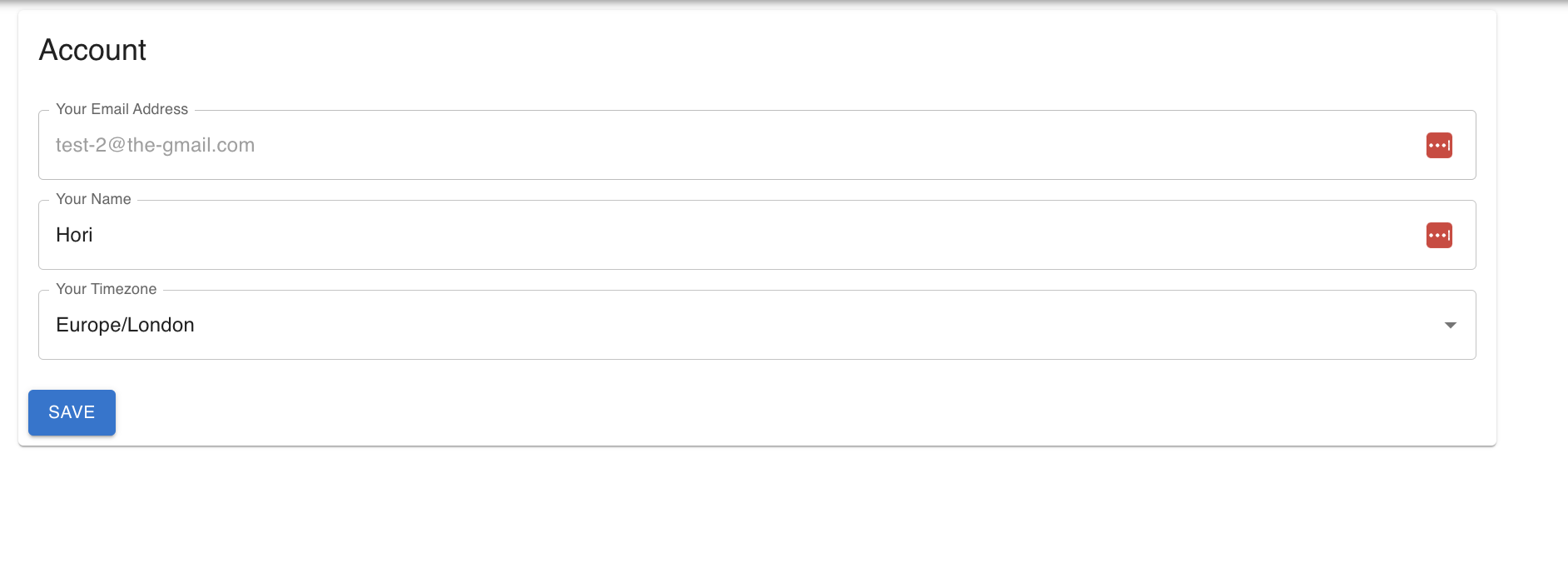
An account has an email. This is your unique identifier you are known by in Thrive.
An account has a name. This is simply the name that you want to be known by in Thrive,but it doesn't carry any other constraints other than being non-empty.
An account also has a timezone. This is the preferred timezone in which you wish to seedates.
An account has a picture too. It shows up in the top bar, next to the account menu. Until you choose one, it is drawn from your name. See Picture below.
Naturally, login credentials are linked to the account. Besides the password, there isalso an account recovery token that you need to keep in a safe space.
Interactions
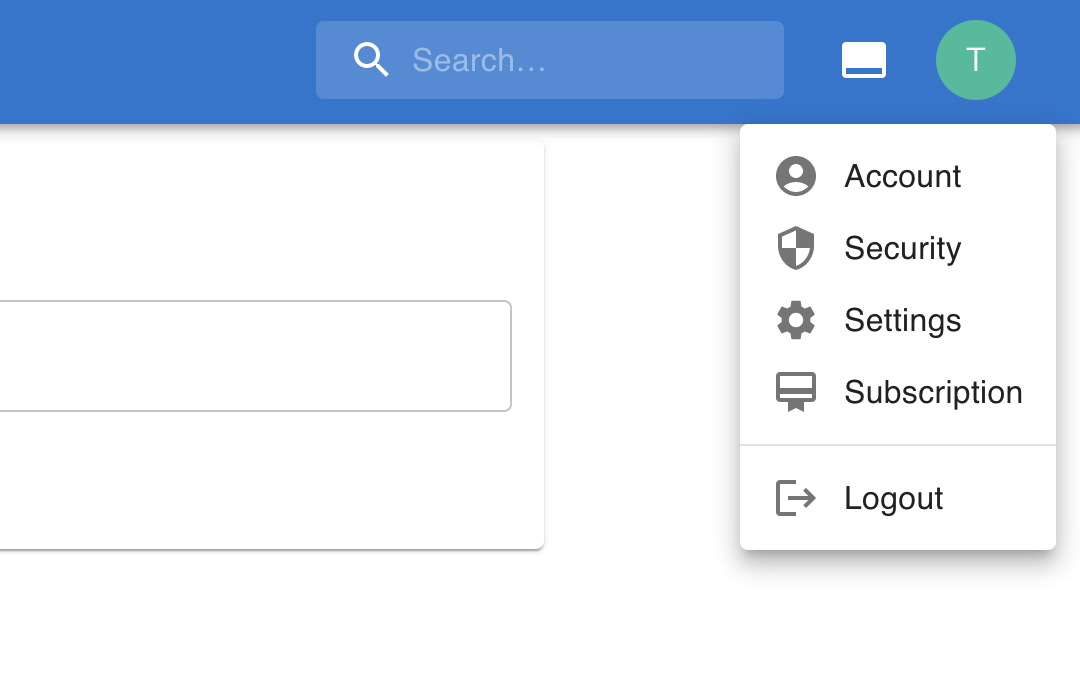
In the Web app you can access account and security controls in the right-hand menu.
You can update some properties, but not your email.
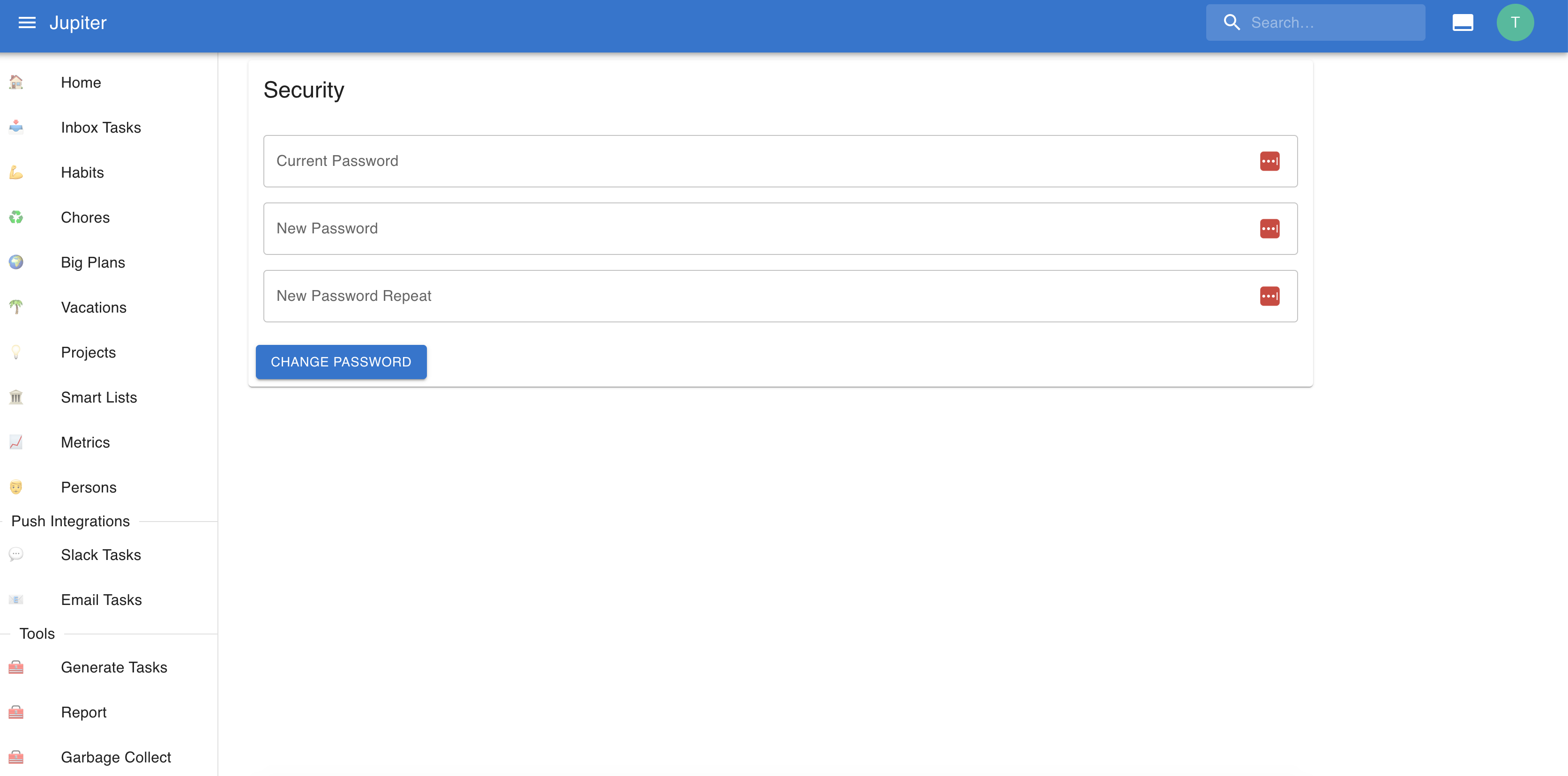
Your password can be changed from the sign-in methods section.
Picture
The Account page opens with a Picture section. Press "Upload picture" and choose a JPEG, PNG or WebP file. Big photos are scaled down in your browser before they are sent. HEIC files, which some iPhone exports produce, are not supported: convert them to JPEG first.
The picture is cropped to a square around its middle and kept at 256 pixels at most, so pick one where the middle is what you want to show. Whatever else was in the file, including where a photo was taken, is not kept. A picture needs to be at least 128 pixels on its shortest side.
"Remove picture" goes back to the one drawn from your name, and deletes the one you uploaded. Closing your account deletes it too.
If you sign up with Google, or link a Google account, your Google picture is used until you choose one of your own. It follows changes you make at Google, but a picture you uploaded is never replaced, and once you remove it, it does not come back by itself.
Sign-in methods
An account can have more than one way to sign in: a password, Google and Apple. Open the Account page to see which ones are linked, link another one, or unlink one. You always keep at least one.
- Linking Google or Apple. You need to be signed in already. Press "Link" next to the method and sign in with the Google or Apple account you want to add. A Google or Apple account can belong to only one Thrive account.
- Adding a password. If you signed up with Google or Apple, you can add a password once your email is verified. You'll get a new recovery token to keep.
- Signing in with a method that isn't linked. If an account with the same email already exists, you'll be told how to sign in to it. Sign in that way, then link the new method from the Account page.
Your name and email follow the method you signed up with. Linking another method never changes them.